Staff
The employee register — who works for you, what they are allowed to do, and the settings that govern the whole staff module.
The employee list
Where to find it·Staff → Employees
Employees are listed per business with filters for status, role, section and employment type. The tabs across the top split the list into Active, Invited, Suspended and All.
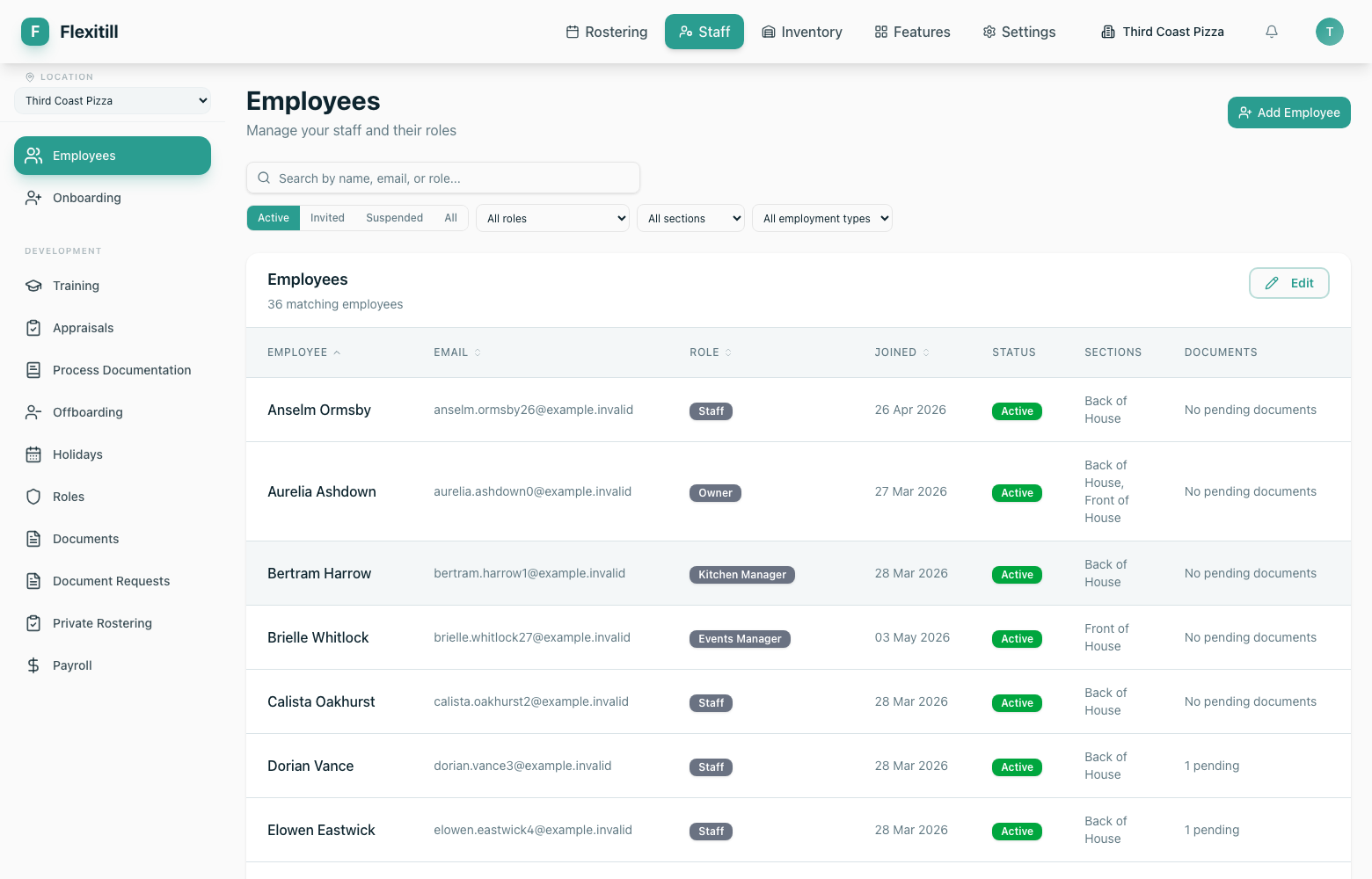
| Column | What it shows |
|---|---|
| Employee | Name and avatar. Click through to the full employee record. |
| The address used to sign in and receive document requests. | |
| Role | The permission role attached to the account, e.g. Owner, Kitchen Manager, Staff. |
| Joined | Start date held against the employment record. |
| Status | Active, Invited or Suspended within this business. |
| Sections | Which working areas the employee can be rostered into. |
| Documents | Whether any document requests are outstanding for that person. |
| Employment Type | The contract basis held on the employment record. |
| Compliance Form | Progress of the statutory compliance questionnaire. |
Adding an employee
- 1Open Staff → Employees and click Add Employee.
- 2Enter the name and email address. The address must be one the employee can access — the invitation is sent there.
- 3Assign a role, which determines what they can see and do.
- 4Assign the sections they are qualified to work.
- 5Save. The employee appears under Invited until they accept and set a password.
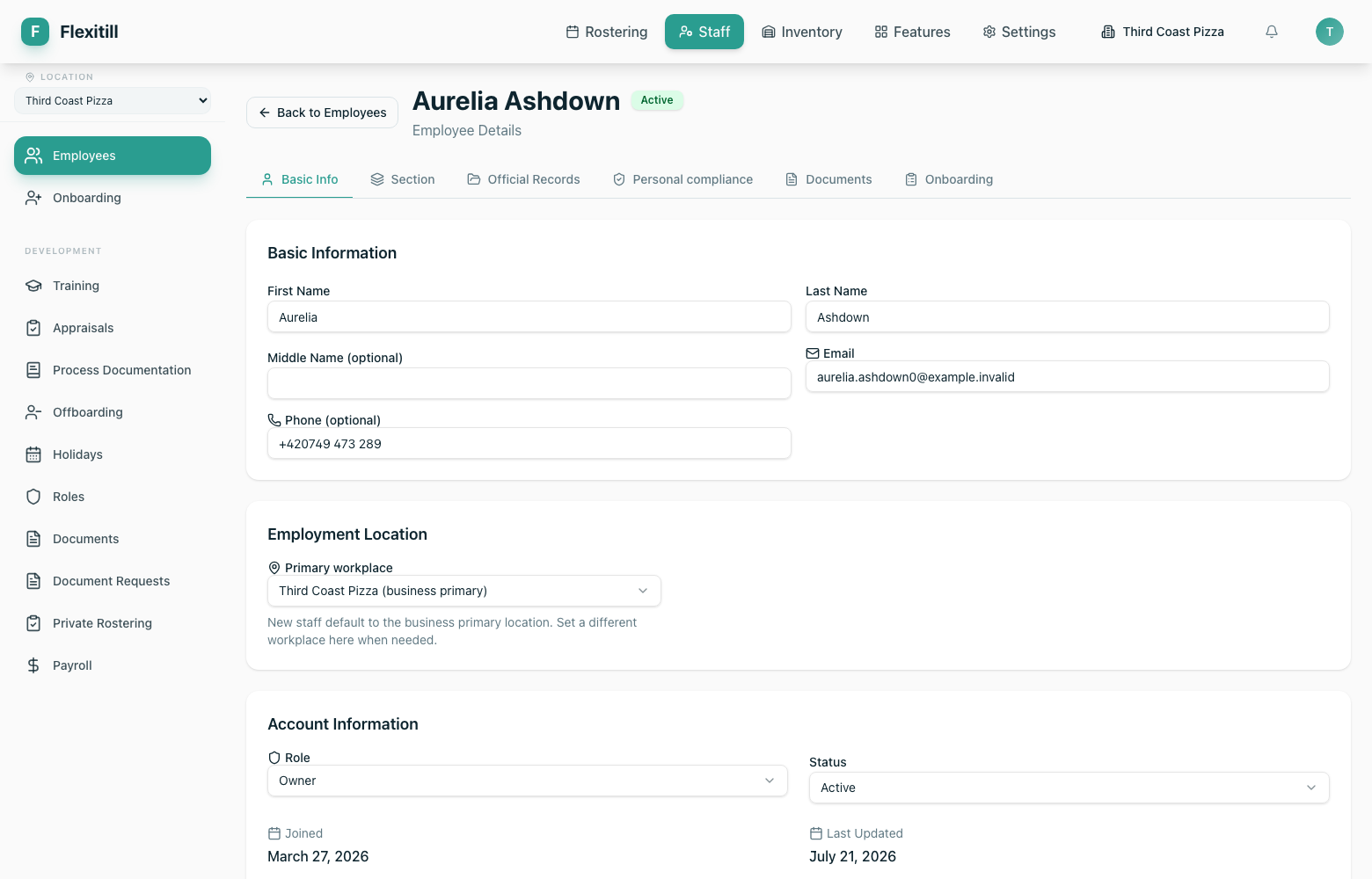
The employee record itself is tabbed: basic information, the sections they work, their official records and personal compliance data, their documents, and their onboarding progress.
Roles and permissions
Where to find it·Staff → Roles
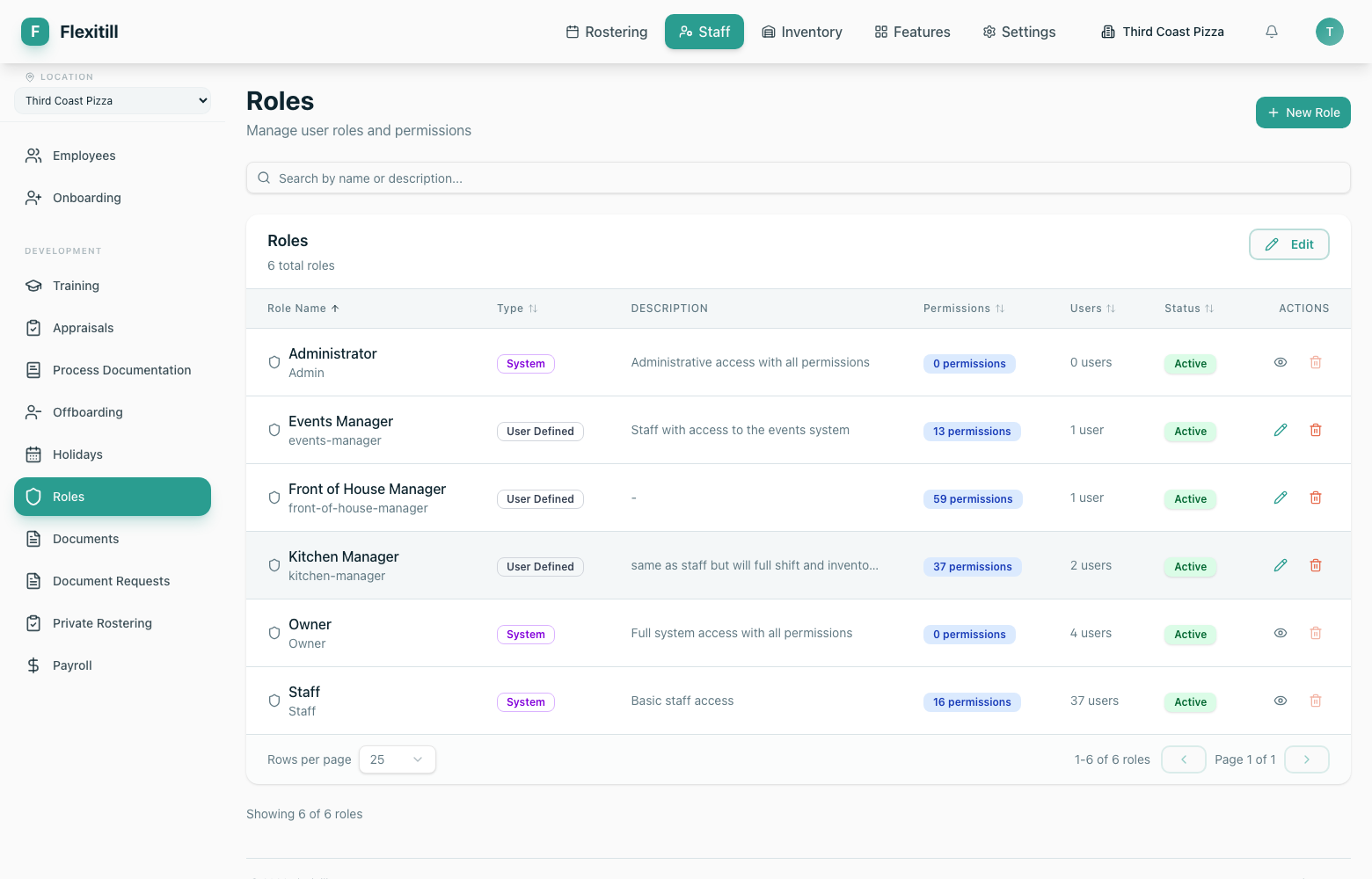
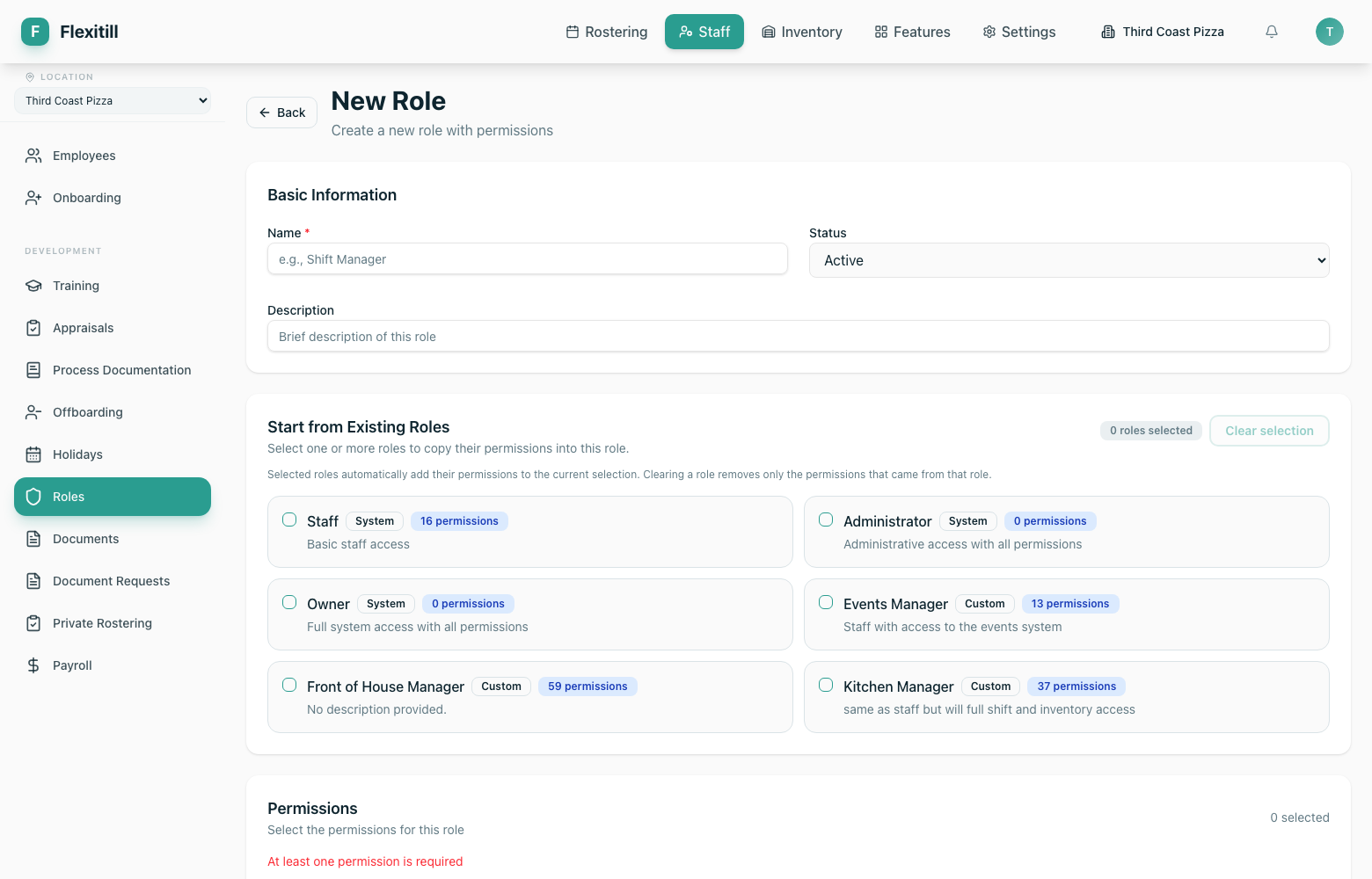
Roles are bundles of permissions. Flexitill ships with a set of standard roles, and you can create your own for anything in between.
Pay rates and staff settings
Pay rates
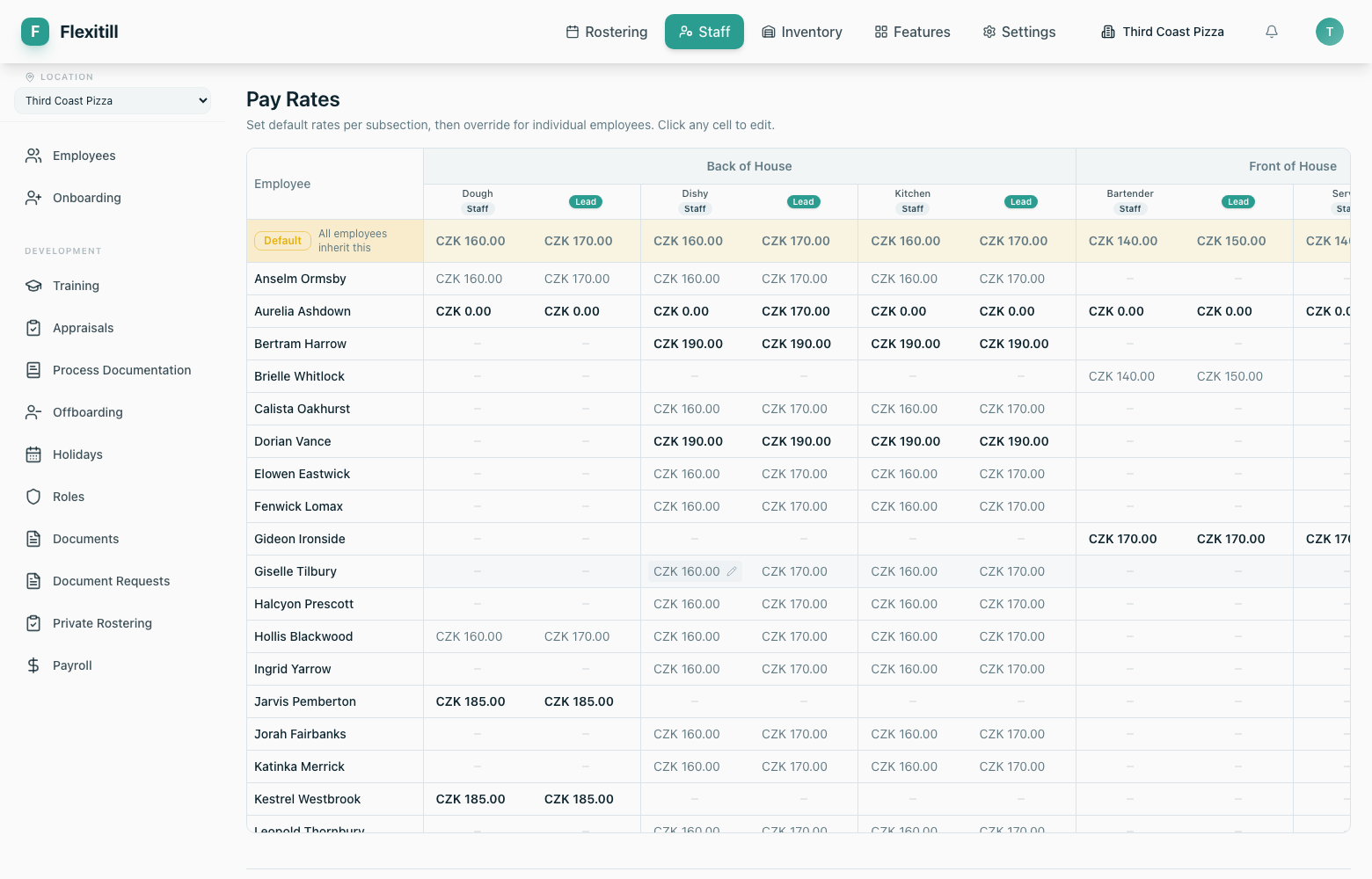
Rates are set per subsection, with per-employee overrides. Click any cell in the grid to edit it.
Staff settings
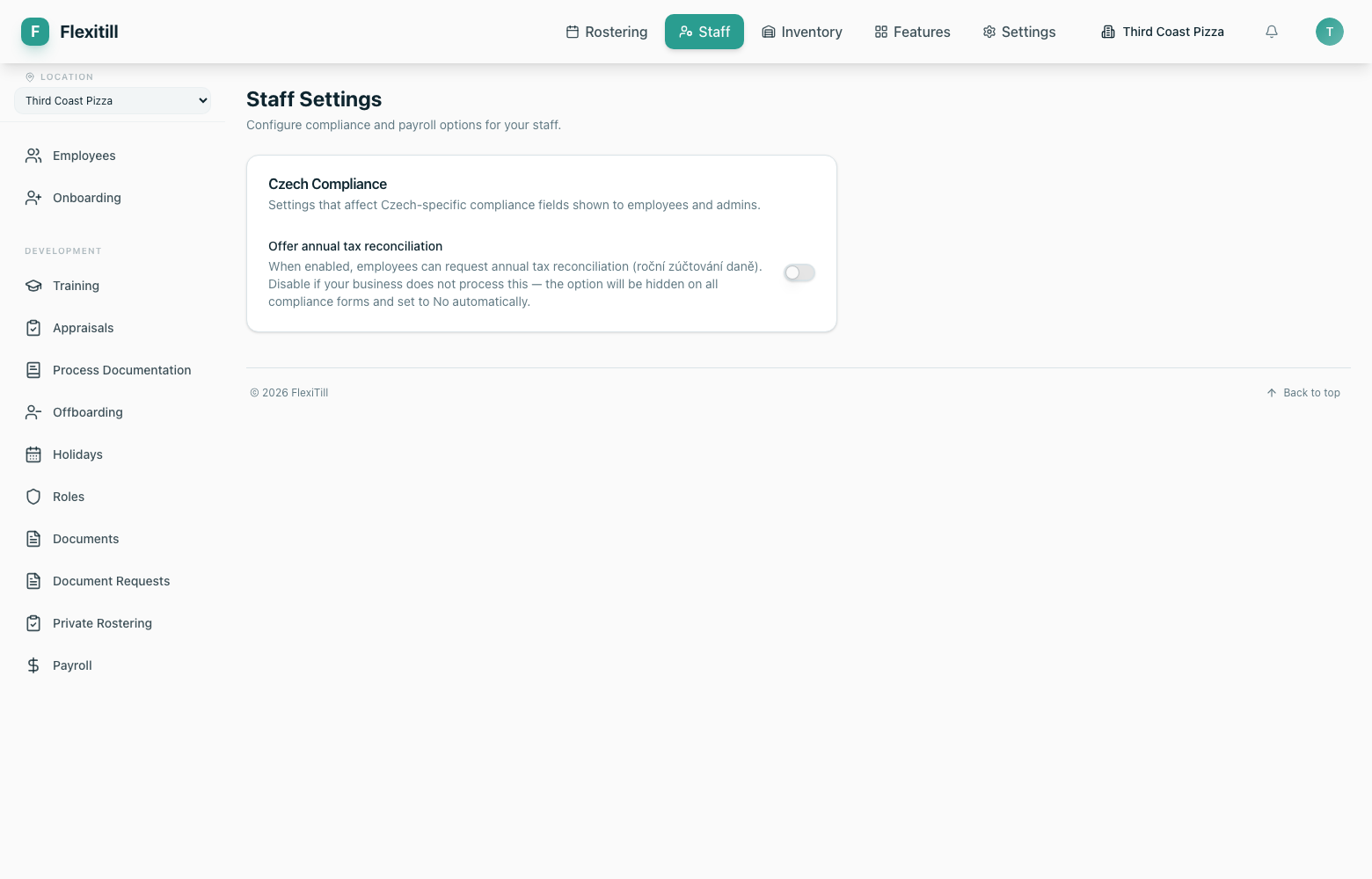
Module-wide options for the staff area.