Count and control stock
Define what to count, record what is physically present, approve the adjustment, and keep losses and movements auditable.
How a stock count changes stock
1. Define
Use an ad-hoc scope or a saved Stock Count List for one location.
2. Snapshot
Starting freezes the expected quantities and exact Product, Variant, lot and Storage Area rows.
3. Submit
Saving the entered lines submits the count for review but does not change on-hand stock.
4. Approve and post
An authorised reviewer posts the variances. Only this step changes stock.
Create a reusable stock count list
Where to find it·Inventory → Stock Count Lists
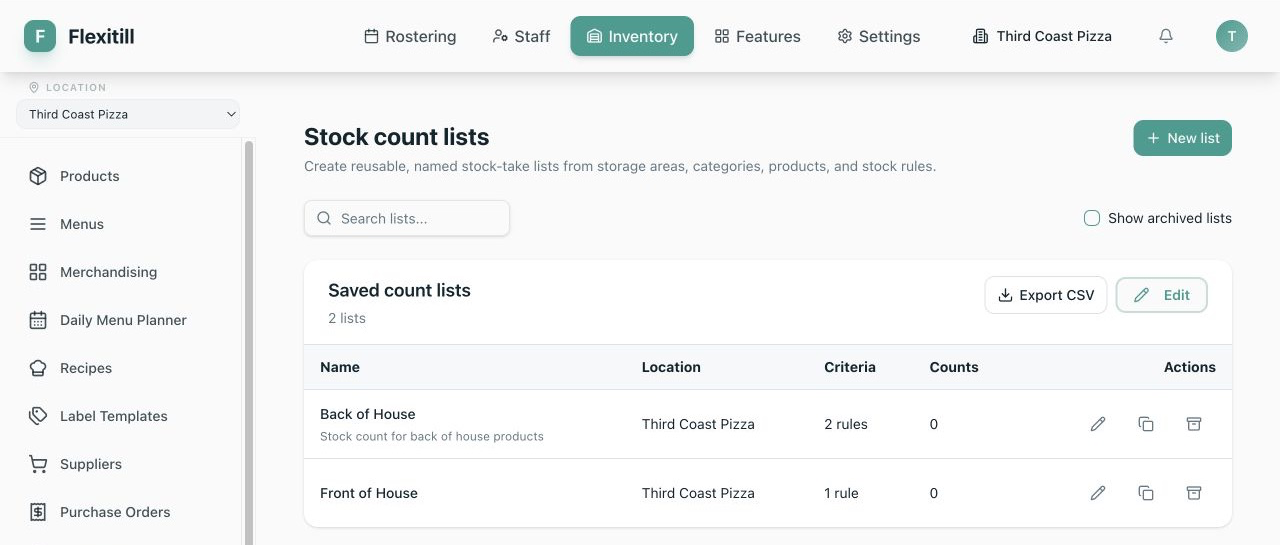
- 1Select the location, then choose New Count List.
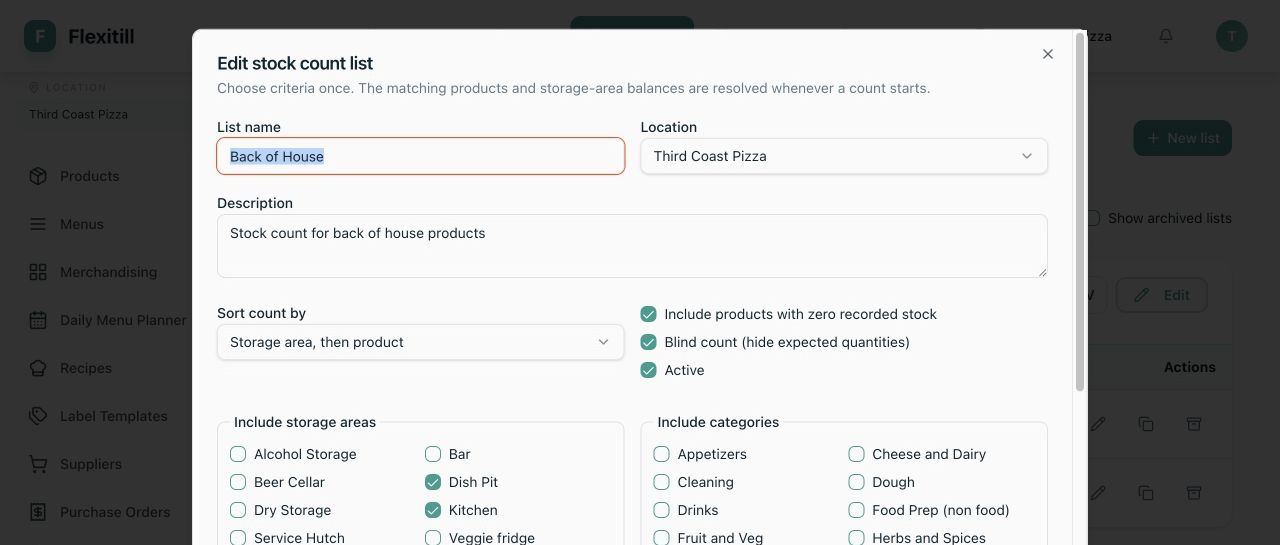
- 2Enter a name and optional description that tells counters when and where to use it.
- 3Choose a sort order: Storage Area then Product for a physical walk, Category then Product for category-based sheets, or Alphabetical.
- 4Choose whether to include zero-stock rows and whether Expected quantities should be hidden with Blind count.
- 5Leave the list Active when it should be available from Stock Counts.
Build count-list rules
Rules are resolved when the count begins, so matching new Products are included automatically. The resulting rows are then snapshotted for that count's history.
- 1Add a rule for Storage Areas, Categories, Products, supply type or tracking mode.
- 2Choose Is any of to include selected values or Is not any of to exclude them.
- 3Use a Product include-only rule when the list should contain an explicit set. Add an exclude rule for exceptions to broader Category or Storage Area rules.
- 4Choose Purchased and/or Manufactured when the list is supply-type specific.
- 5Choose Quantity and/or Lot + Expiry when tracking mode should control membership.
- 6Refresh the live preview. Check the matching row count, the first preview rows and whether Unassigned stock is included.
- 7Resolve overlap warnings before starting. A Product can legitimately appear once per Storage Area, Variant or lot, but the same exact row must not be in another active count.
Choose how each product is counted
- 1In the list preview, choose Base unit when staff enter the ledger unit directly.
- 2Choose Product counting unit to force one saved handling unit such as bottle, case or bag. Add that conversion on Product detail first.
- 3Choose Supplier packs when staff count unopened packs by supplier offering and enter any open remainder in the Product's base unit.
- 4Save the list and reopen its preview to verify that the method and Variant identity were retained.
Maintain a stock count list
- 1Open a list to update its name, rules, options or counting methods. Version protection prevents an older browser view from overwriting newer edits.
- 2Use Duplicate to create a new starting point without changing the original list.
- 3Turn Active off when the list should remain editable but not be selected for a new count.
- 4Use Archive when the definition is retired. Enable Show archived when you need to review it later; lists with count history are retained rather than permanently deleted.
- 5Review the Uses count before changing a frequently used definition. Previous counts retain their own snapshots.
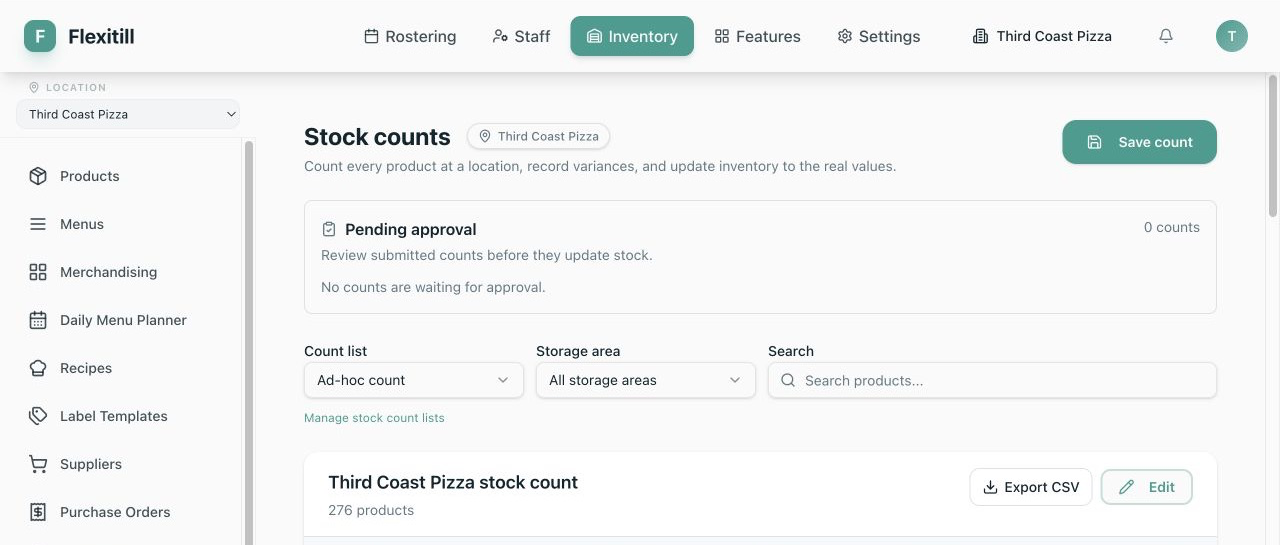
Run an ad-hoc stock count
Where to find it·Inventory → Stock Counts
- 1Select a location, choose Ad-hoc count, then choose All Storage Areas or one area.
- 2Search when needed. Search also matches supplier pack names, Supplier names and supplier codes.
- 3For each row, select an available counting unit and enter Target and Actual. Actual may contain up to four decimal places but cannot be negative.
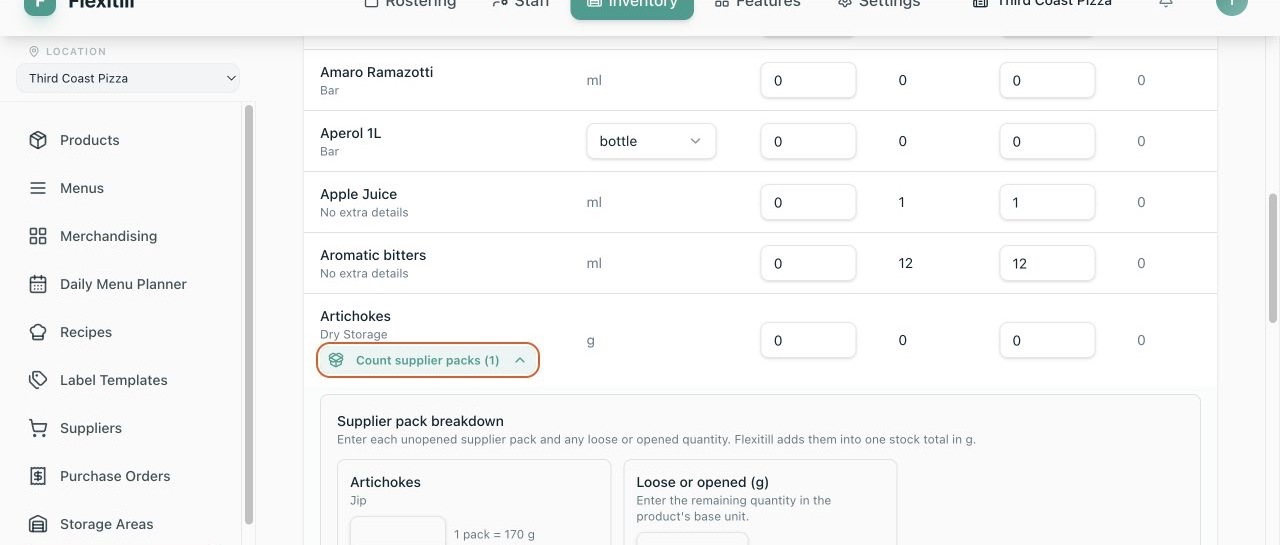
- 4Review Expected and Variance. If a Product has supplier packs, expand Count supplier packs when that is faster than entering the total directly.
- 5Add count or line notes for damaged stock, inaccessible stock or other review context.
- 6Choose Save Stock Count. Flexitill starts the count, freezes the expected values, saves every line and submits it to Pending review.
Run a count from a saved list
- 1Select the location and choose the active Stock Count List.
- 2Check that the displayed Product count and list name match the intended count. Storage Area selection is controlled by the list and cannot be changed here.
- 3If Blind count is enabled, Expected reads Hidden and Actual begins empty. Enter the physical quantity without using system stock as a prompt.
- 4Enter every required row using the counting method configured on the list, add notes, then save to submit.
- 5If the rows are wrong, stop and correct the list before starting another count. Once started, that count retains its snapshot even if the list changes.
Count supplier packs and loose stock
- 1Expand Count supplier packs on an ad-hoc row, or use the automatically expanded row when the saved list forces Supplier packs.
- 2Enter the number of unopened packs beside each Supplier Product. The displayed conversion shows how many base units one pack contains.
- 3Enter the opened or loose remainder in the Product's base unit.
- 4Check the calculated total before moving to the next Product. Entering a direct Actual clears the pack breakdown, and entering a pack breakdown replaces the direct total.
Approve and post a submitted count
Where to find it·Inventory → Stock Counts or Inventory → Operations → Stock Counts
- 1Open Pending review and identify the count by list or location, submission time, line count and absolute variance.
- 2Review unexpected lines and confirm that no receiving, transfer, production or sales activity occurred after the count began.
- 3In Operations, check the variance value. A Partial or Not valued warning means one or more non-zero variance lines lack cost; it does not mean their value is zero.
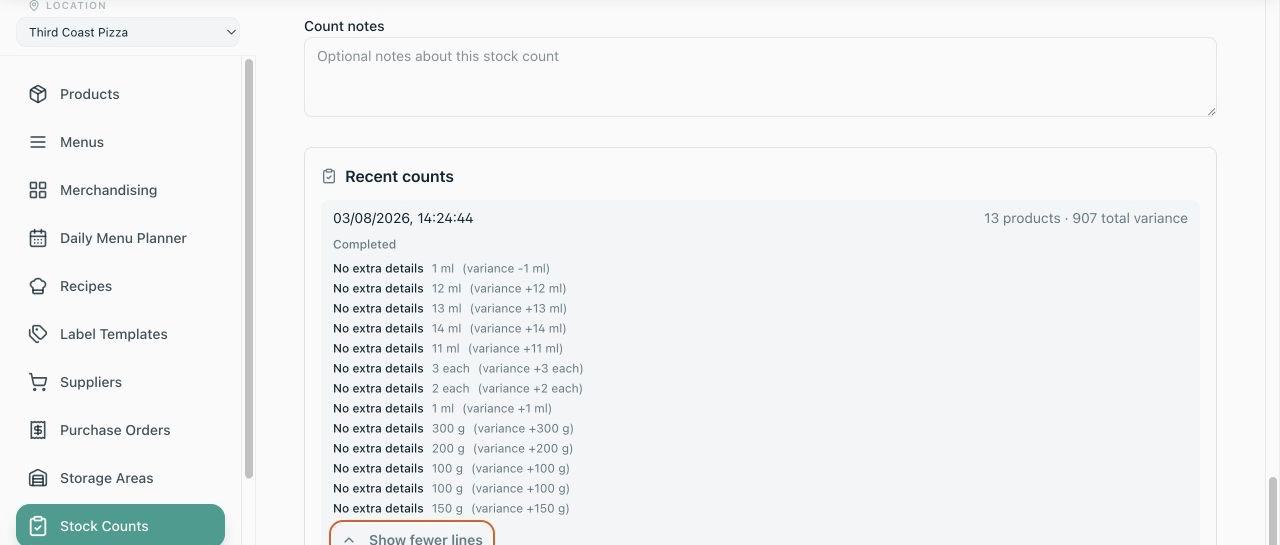
- 4Choose Approve and post. On-hand quantities and targets are updated and the count becomes Posted.
- 5Verify the result in Recent Stock Counts, Product balances and Inventory → Operations.
inventory.approve, inventory.adjust or the compatible legacy inventory.update permission. Counters without approval access can submit and will see why the approval action is unavailable.Resolve a count that cannot be posted
Stock changed after the count started
- 1Do not repeatedly press Approve. Review Deliveries, transfers, Write-offs, production and sales posted after the count start time.
- 2Reconcile the physical stock with those movements.
- 3Use Copy count in Operations to load the prior scope as a new draft, or start a fresh count from the saved list.
- 4Enter current physical quantities and submit the replacement count for approval.
Variance value is incomplete
- 1Note the number and quantity of unvalued variance lines in Operations.
- 2Open the affected Products and maintain a valid Product or Supplier Product cost through normal purchasing data.
- 3Treat the displayed known value as a partial subtotal until all non-zero variance lines have cost coverage.
Review and export inventory operations
Where to find it·Inventory → Operations
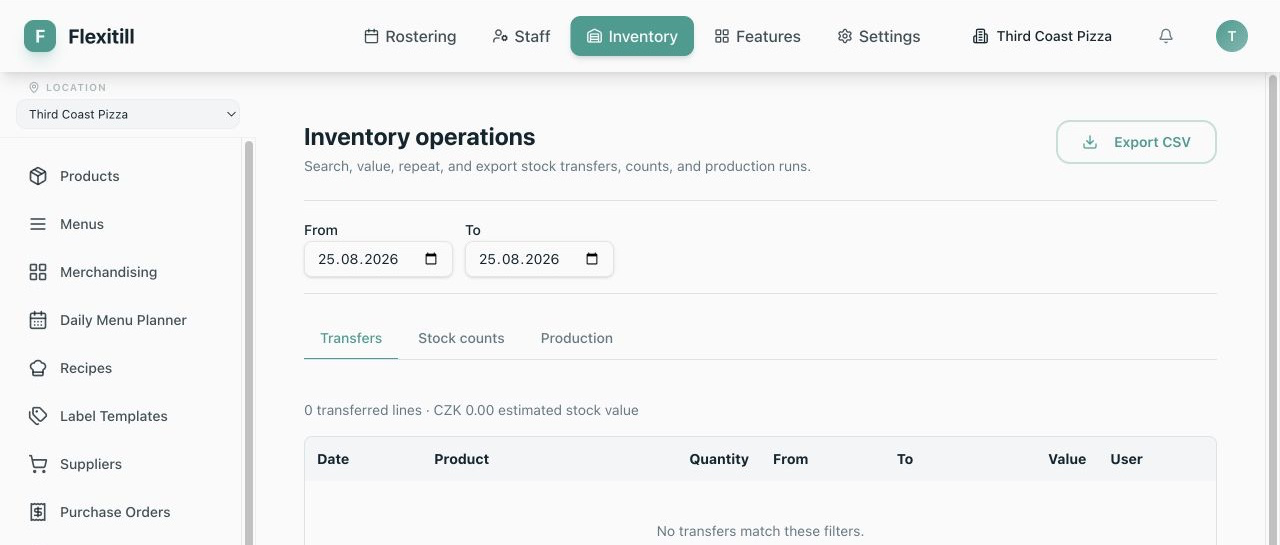
- 1Select a location or All locations and set the From and To dates.
- 2Open Transfers to review Product, base quantity, source/destination location and area, value and user.
- 3Open Stock Counts to review status, lines, absolute variance, known value and valuation coverage. Approve Submitted counts when permitted or choose Copy count to create a new draft.
- 4Open Production to review Recipe output, yield, input cost and cost per base unit.
- 5Choose Export CSV while the required tab and filters are active. The export follows the current operation type and location scope.
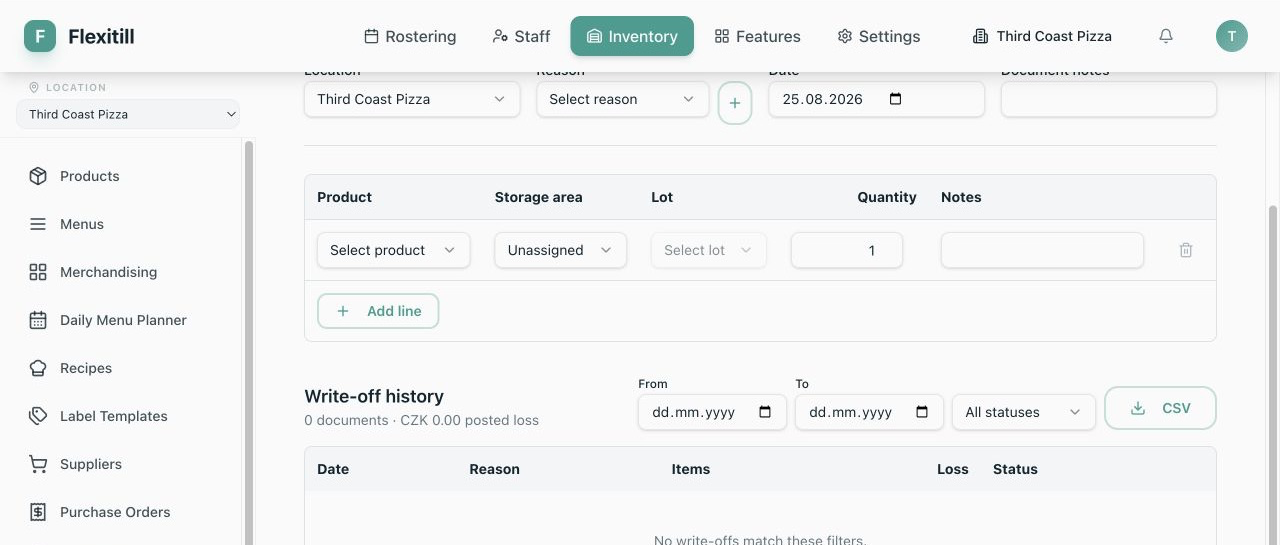
Post a write-off
Where to find it·Inventory → Write-offs
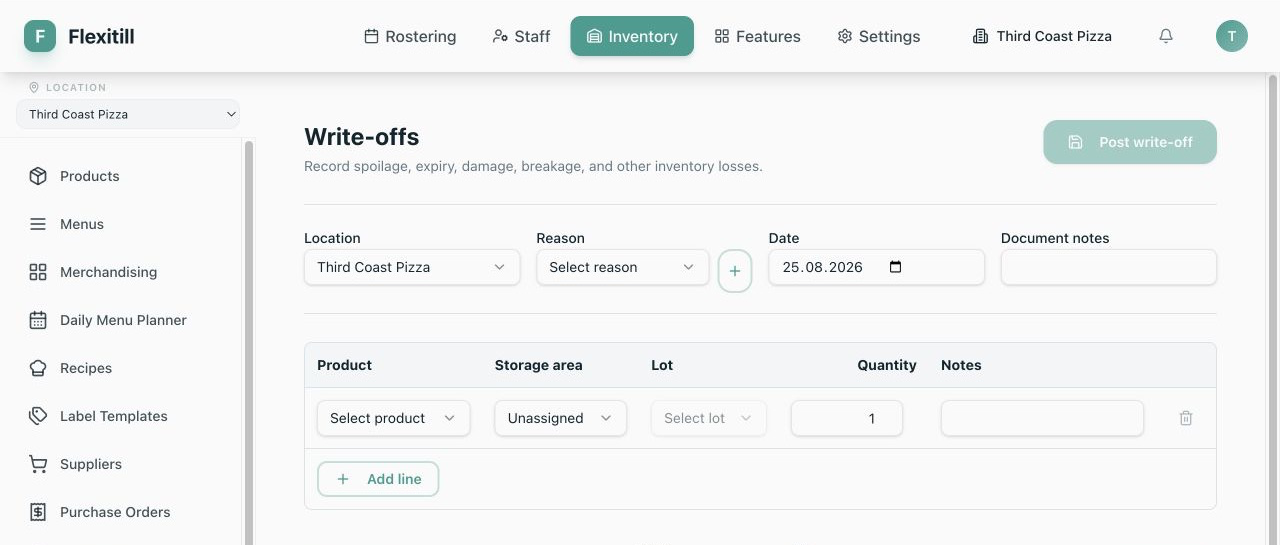
- 1Select the location, reason and effective date. Use Add reason if the correct active reason does not exist.
- 2Add document notes that explain the event.
- 3Add one line per Product and choose its Storage Area or Unassigned balance.
- 4For a lot-tracked Product, choose the exact available lot. Enter a positive quantity in the Product's base unit and add line notes where useful.
- 5Review all lines, then post. Flexitill reduces the exact balances and records the stock-loss value against the reason.
Find, export or void a write-off
- 1Use the From/To dates and Posted or Voided status to filter history.
- 2Review the document count and Posted loss value, then open the required document or export the filtered register to CSV.
- 3If a posted Write-off is wrong, choose Void and enter a mandatory reason that identifies the mistake.
- 4Confirm the void. Flexitill posts reversing movements that restore the exact Product, Variant, lot and Storage Area quantities while preserving both records in the audit trail.
- 5Verify the document is Voided and the Product balance has been restored.